FOR DESIGNERS
Build ads with the specs, assets, and proof notes in reach.
AccountScout gives designers the order context, advertiser assets, proof feedback, and InDesign-side tools they need to build ads without scavenger hunts.
Works in
AccountScout
The problem
Design work gets messy when creative context is scattered.
Assets, notes, old ads, and specs are buried in email or shared drives.
Proof changes arrive without a clean history of what changed and who approved it.
Designers have to jump between systems before they can start real production work.
THE END OF THE SCAVENGER HUNT
The logo is on the account, not in an email from two years ago.
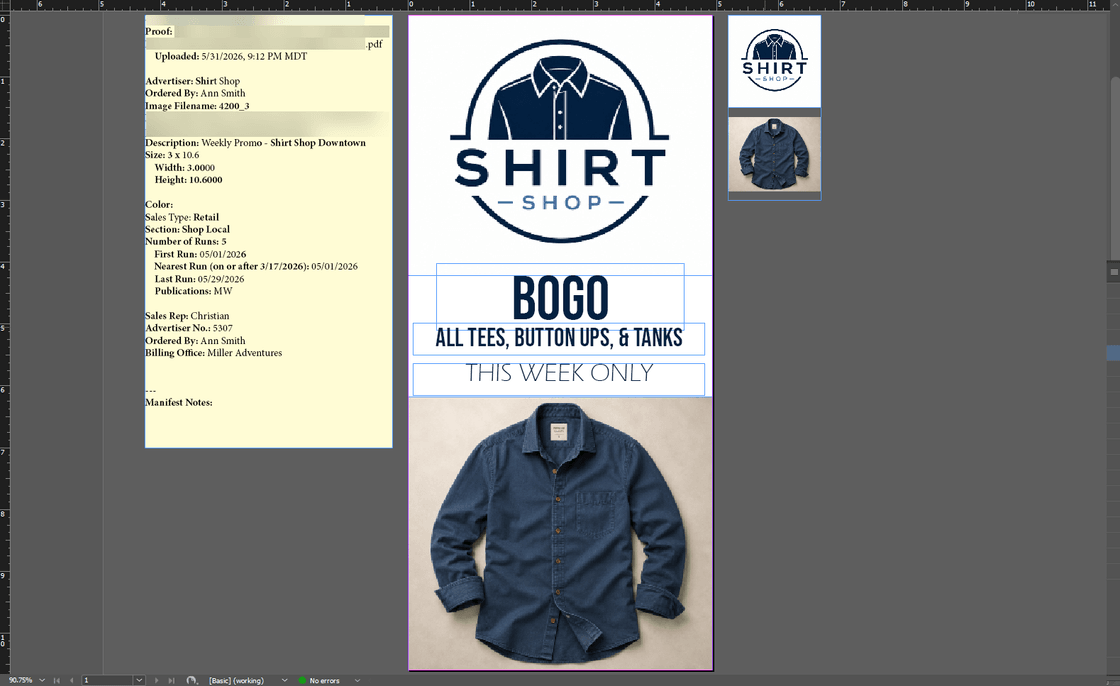
Logos, product photography, and prior creative live against the advertiser. The current approved file is the one that opens — not the newest attachment, and not a guess at which version on the shared drive was the final one.
- Assets attach to the advertiser, so the approved version is found first
- A repeat or pickup insertion reuses the real file instead of a rebuild
- At renewal the artwork is already there, so nobody asks the client again
One stored file

Shirt Shop
shirt-shop-logo.eps
Camera-ready

Mar 2025
Spring ad
Sep 2025
Fall promo
Mar 2026
Renewal
What designers get back.
A clear queue with status, specs, assets, and advertiser context
Proof notes and approval history connected to the job
AdScout and PageScout support for InDesign-side ad and page work
Where designers fit in the AccountScout workflow.
- 1
Order
Receive the ad request with specs and advertiser context.
- 2
Proof
Send, revise, and track creative approval.
- 3
Publish
Move approved work toward page layout and export.
- 4
Renew
Reuse account and creative history for future orders.
Related products
These are the parts of the Fake Brains suite this role usually touches first.
See It In Action
Show designers the production path.
We can walk through the designer view from order details to assets, proofing, InDesign work, and page-ready output.